In the almost 3 years since, everything has changed - and yet, nothing has. But none of the screenshots apply to newer clusters anymore, and since the old article was quite popular, it renders okay, but it was migrated from my old blog (which ran on WordPress). I certainly do not want to touch it, as it might blow up.
Anyway - AKS comes with a default "Kubernetes Fake Certificate" that's shown when no other matching certificates can be found. In my day-to-day work, our tooling normally replaces this with a certificate of our own, but both have a certain quality that some customers do not like: they expose information about the underlying platform.
Not a lot of information... But information nonetheless.
So we still need a way to replace the certificate with something else, when someone requests it without a proper host name. That happens when a user navigates to the IP address of the ingress controller directly, or uses a host name that does not match any configured ingress rules (but that still lands on the same IP address).
Solution
The solution is to configure the ingress controllers for your Kubernetes cluster to serve a different default SSL/TLS certificate. This requires a bit of scripting, but shouldn't be too hard for us!
As a prerequisite, you'll need the az module for PowerShell, kubectl (included in the module), and an Azure Subscription with AKS cluster(s) available. The same guide probably partially applies to any Kubernetes cluster, but AKS is the flavour I use.
Time needed: 20 minutes.
How to change the default SSL/TLS certificate for your AKS ingress controllers?
Generate a new certificate
This can be whatever you like. It's going to be recognized as an invalid certificate nonetheless.
Verify it's in PEM format - i.e., you can open it up in notepad and the first line you see is something like this:
-----BEGIN CERTIFICATE-----
This guide supposes your certificate is called acme.cer and the matching private key is in a file called acme.key, and both are PEM-formatted (base64 with standard headers).
Figure out your k8s details
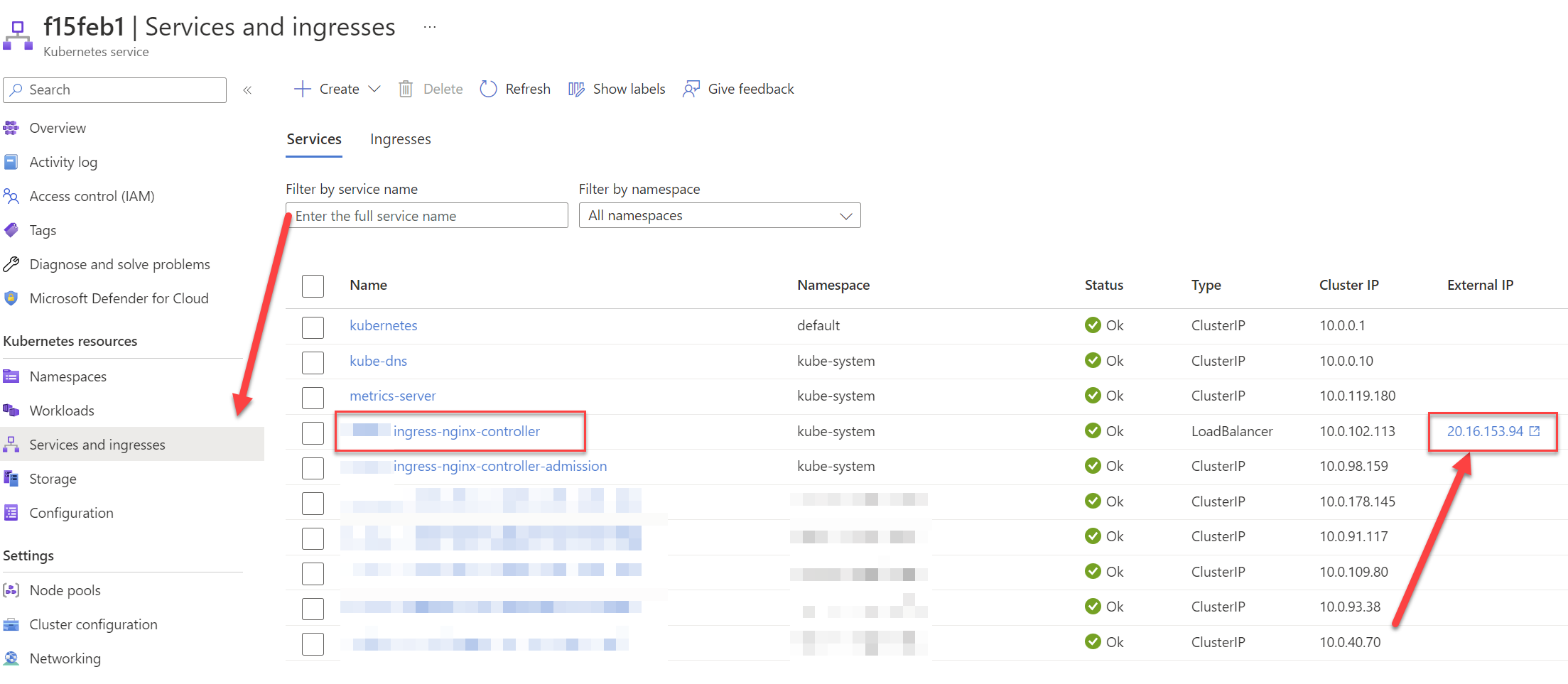
You'll need a namespace for your secret, and you'll need to identify your ingress controllers and the external IP address.
Namespace can be any valid one, but pay attention to the IP address!
How to find out your external IP address in AKS?
Upload your certificate
You'll need to create a new secret for your certificate contents and upload the certificate into it using kubectl.
kubectl is available in Azure CLI (or you can get it separately if you really want to). The commands are going to look somewhat like the below:
az account set --subscription your-guid-here
az aks get-credentials --resource-group Your-Group --name f15feb1
kubectl create secret tls 'custom-fake-cert' --cert='./acme.cer' --key='./acme.key'
You should get something like this back: secret/custom-fake-cert created
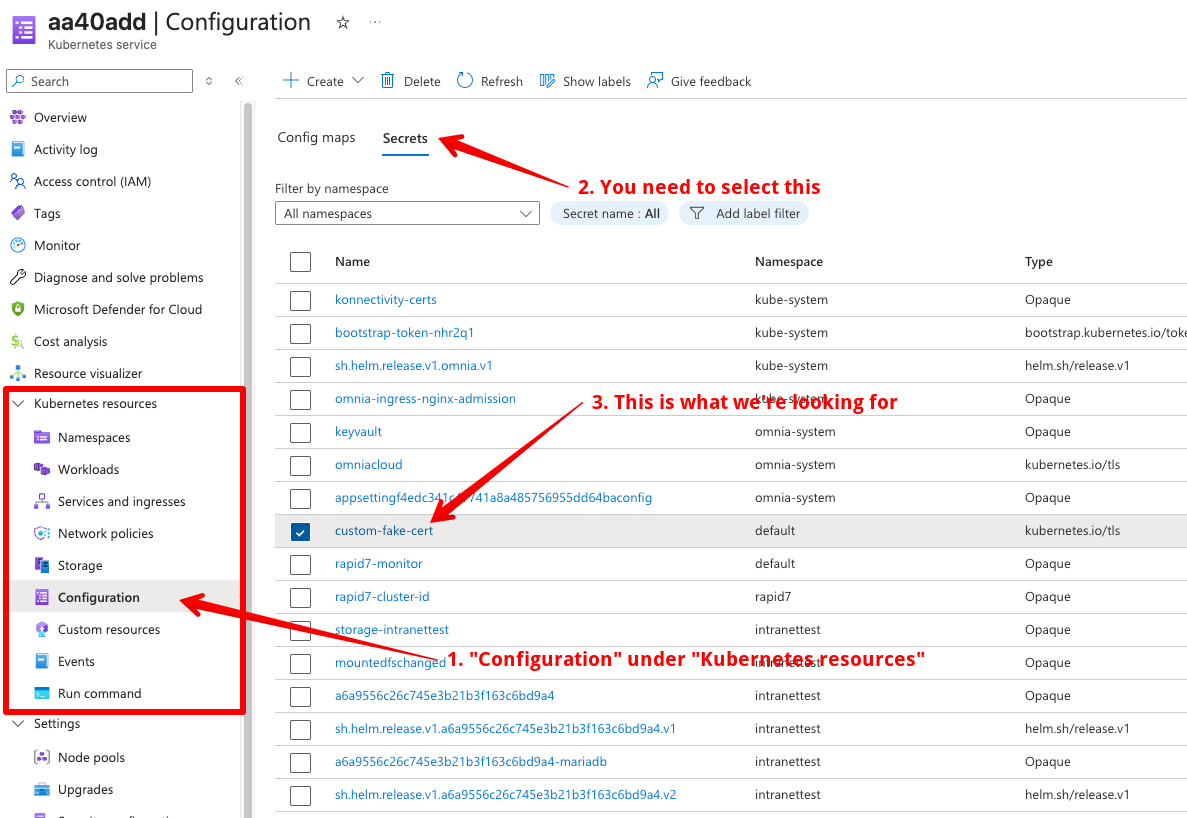
You can verify the deployment was successful by checking the Configuration > Secrets view in AKS and see if your secret is there:
Our new secret for the custom certificate in AKS
Find your ingress controllers
Now we'll want to navigate to Kubernetes resources > Workloads > Daemon sets and find our ingress controllers.
Yep, this has changed from how it was before. But you'll still hopefully recognize your ingresses by name - they are usually called something like ingress-nginx-controller or similar.
Modify the ingress controller deployment
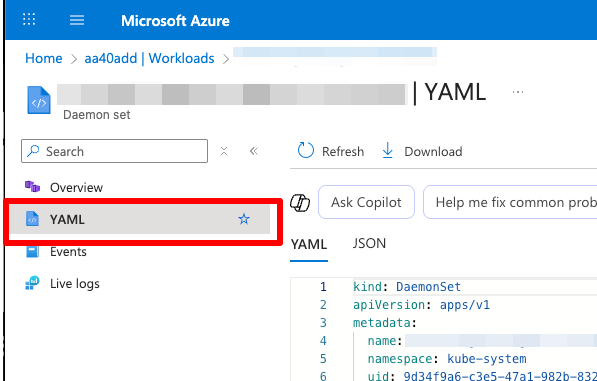
Now, open up the "Daemon set" (in the past you would have navigated to the "Deployment" - potato, tomato) of your ingress controller(s) and click "YAML".
Find your Daemon set
You'll want to add a new argument to the startup of your controller. The YAML structure has changed somewhat, but the idea is the same.
You'll want to add this: '--default-ssl-certificate=your-namespace/your-secret-name'
So in our case, that'll of course be: '--default-ssl-certificate=default/custom-fake-cert'
That'll come in the "args" section for your controllers - the whole thing looks somewhat like the excerpt below:
Theoretically, this should happen automatically. But you can make sure it's quick by removing the pods yourself (supposing this isn't a live production environment with a lot of users trying to access it right now!)
Verify your changes have been applied
You can open the YAML for your pods, and see if the argument is there.
If it isn't, just do the contra-Einsteinian thing, and try again until it works. Eventually, it should.
It just isn't particle physics, is it? Oh well.
Test!
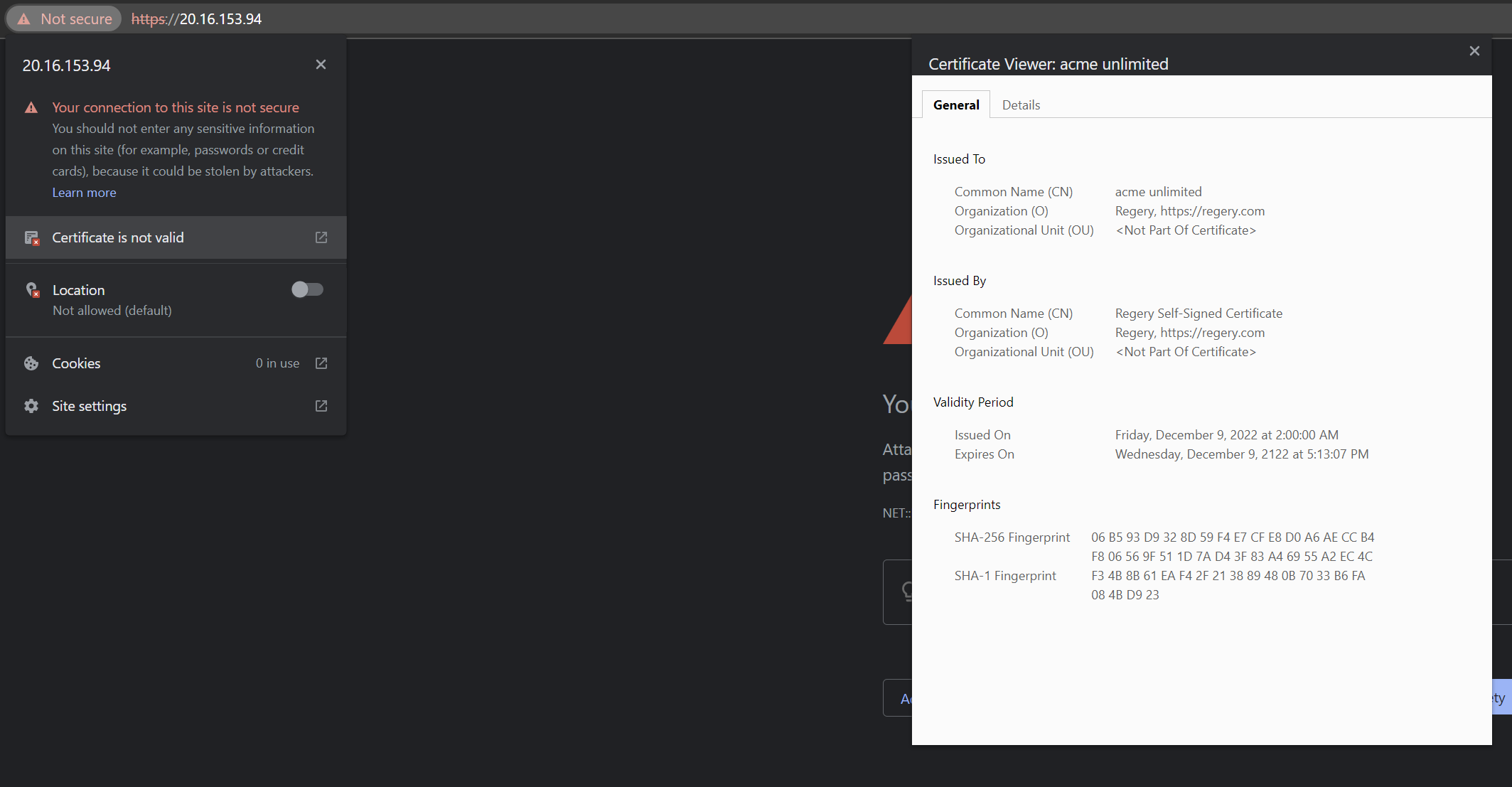
Now you should be able to navigate to your desired IP Address and give the certificate another closer look.
Our new fake certificate throwing the expected validation error in browser. Beautiful!_
Our new fake certificate throwing the expected validation error in the browser. Beautiful!
And that should be it! The change should stick until you redeploy - so if you want to make it permanent, better incorporate it into your deployment pipeline!
FAQ
What is the Kubernetes ACME certificate, anyway?
ACME is not just A Company Making Everything, it also stands for Automatic Certificate Management Environment. The default SSL/TLS certificate that AKS (and Kubernetes in general) uses for ingresses is an untrusted one, and if you access it via the IP of the node hosting your pods, it won't be valid anyway. It's not a very useful certificate and shouldn't be used for any serious workloads.
How can I make sure Kubernetes picks up the changes to a deployment?
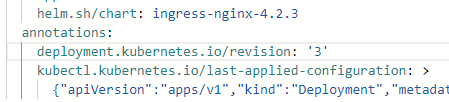
If you want to force pods to pick up any updates to the deployment in AKS, you need to update the deployment.kubernetes.io/revision label for your deployment.
Why this isn't always required to update your pods definition is beyond me. But it works to force it.
Comments
No comments yet.