How to update an event in a M365 Group Calendar?
Maybe nobody else needs a note to remember how to update an event in a M365 Group Calendar, but I do. And since I do, I figure it's worth documenting it here.
Otherwise I'll be confused about it again in a few months (because that's how often I have to do it - once per a few months!)
Background
At Omnia, we've got a set-up where we have a bunch of M365 Groups, and each of these groups has a calendar. The calendars are used to coordinate shared events for the group members - and the general idea is that everyone is invited and welcome to join all of the events.
And everyone in the group is invited to all of the events - events, which means there are a LOT OF meeting invitations flying around!
But that's fine - you only attend the meetings you actually want to attend. But the events themselves are created by a bunch of people and sometimes, the event details need to be updated. And that's where the problem arises.
Your role in the group, and whether you're the one creating the event originally or not has zero effect on your ability to update the event.
If you are a member of the group, you can update the event - but not from your calendar. You are only INVITED to the event BY THE GROUP, and the event itself is NOT in your calendar. So you can't update it from your calendar - you need to go to the group calendar itself.
How to modify an event in M365 Group Calendar
- Open New Outlook (NEW) and navigate to Calendar view. Or go to Outlook online (https://outlook.office.com/calendar/view/workweek) and log in with your M365 account.
- In the left navigation pane, find the "Groups" section and locate the specific M365 Group whose calendar you want to update - and if it isn't enabled, enable it.
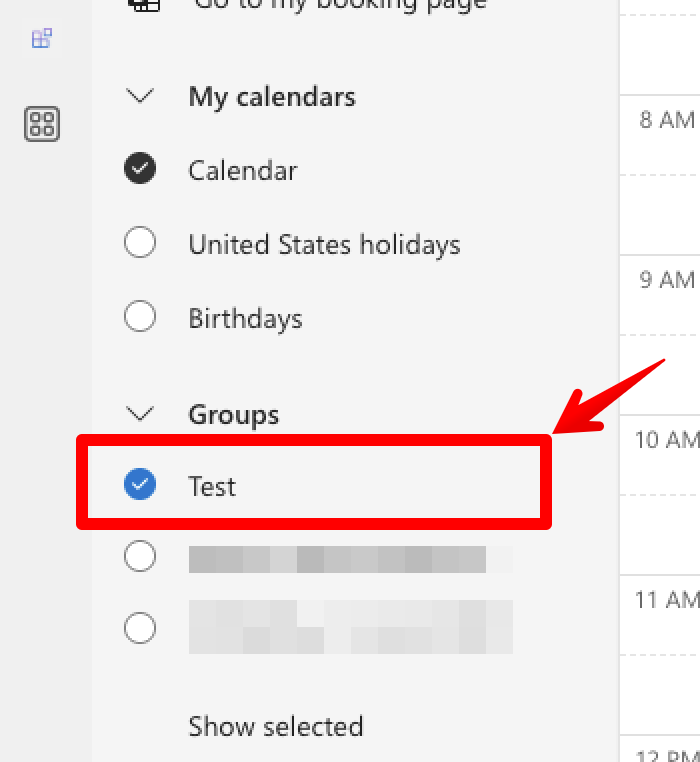
How to open M365 Group Calendar in Outlook - You should see the group calendar open up in the main view. If it becomes too crowded, hide (uncheck) your personal calendar to focus on the group calendar.
- Find the event you want to update and click on it to open the event details (or double-click it - or even drag it around and select "Edit" when a pop-up appears).
- Edit the event details as needed. You can change the title, time, location, description, and any other relevant information.
- Once you've made the necessary changes, click "Save" or "Update" to apply the changes to the event. The updated event will be reflected in the group calendar, and all members of the group will receive notifications about the changes.
Boom! Now you've edited the shared event and the update will be visible to all group members (within 1-15 business minutes, depending on how badly Copilot is overloading the M365 servers at the time).

I hope this helps you (or more likely, me) to remember how to update an event in a M365 Group Calendar.
It's almost July, and after summer having disconnected from anything tech-related for a month to build a little hut in the forest, I will NOT remember how to modify M365 Group Calendar events.
Comments
No comments yet.