How to edit members in a M365 Group or Distribution list?
Stop sending mail to the wrong people because Microsoft buried the controls behind two completely different and hidden UIs.
This guide shows how to edit members of M365 (Unified) Groups and classic Distribution Lists using Outlook Web and the Exchange admin center, safely and without accidentally granting Teams or SharePoint access to your entire vendor list.
The guide explains how to edit members for both M365/Unified Groups and Distribution Lists, where to perform these edits (Outlook Web and the Exchange admin center in Microsoft 365).
Background
You can use both types of groups to send emails to multiple people at once in Outlook. This makes it easy to email, for example, your whole team without having to add each member individually to the recipient list.
That said - the M365 Group is used to provide collaboration features beyond just email, such as shared files, calendars, and more. Distribution lists are more basic and are primarily used for email distribution only.
And since M365 Groups are powerful, and you might be using them to give access to shared resources in addition to email distribution. Maybe you have stakeholders outside your direct team, that still need to access your shared files or calendar? Maybe you have invited other people to your Teams team to help collaborate better?
That means you might have a M365 Group that is not just your team members. And when you're trying to email your team, you might not want to include those external stakeholders.
You can easily check what's what by expanding the group in Outlook:
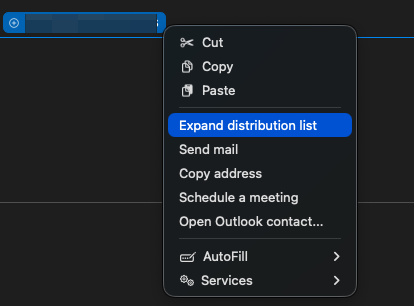
(and if you were going to use the Scheduling Assistant, you'd have to do this anyway!)
So M365 Groups are great for collaboration, but if you want to schedule meetings with a subset of the people who can access your Teams team or SharePoint site, distribution lists are the obvious choice.
But like with most things of Microsoft variety, even though these 2 things LOOK basically similar AND they largely behave the same, the administration of these 2 things is totally different.
And that includes updating the members of these groups.
How to modify members in an Outlook Group?
Microsoft has luckily documented how:
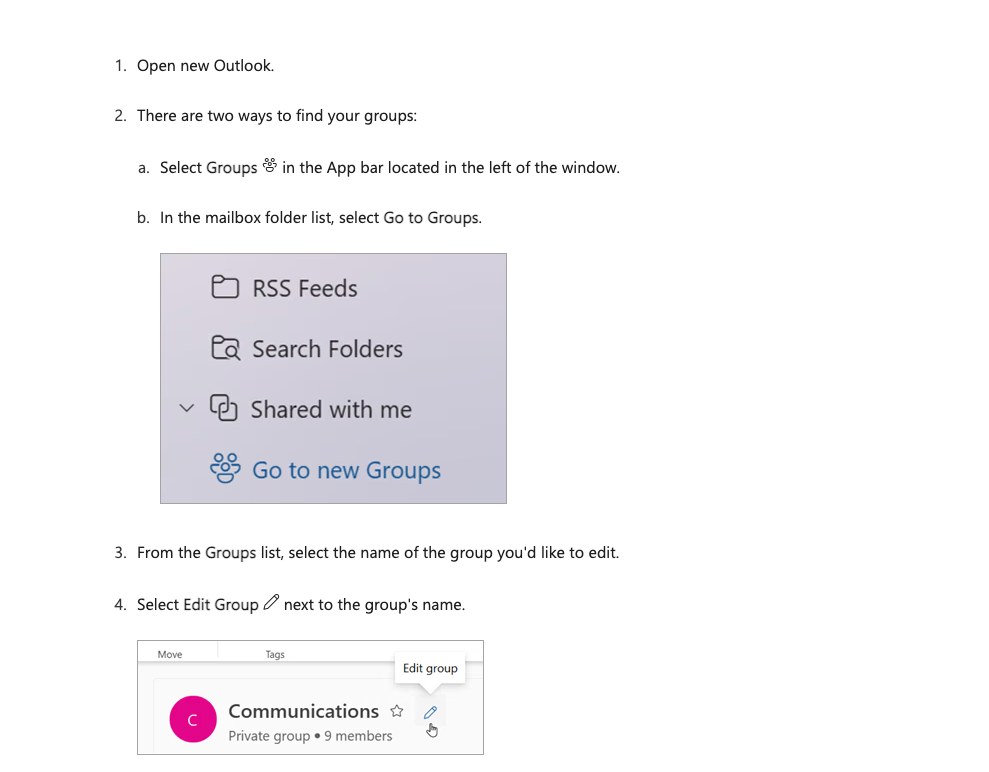
But in a totally expected twist, the documentation is wrong. When I open the new New Outlook (NEW), these are my app bar options:
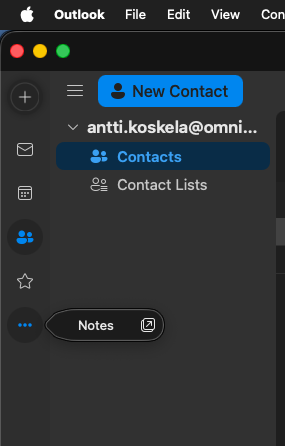
Oh well. I don't think anyone is surprised by this.
The easy solution is to open the Outlook web app, and edit the group members there:
- Open the Outlook groups page: https://outlook.cloud.microsoft/groups/home
- Find your group in the list
- Click the pen icon next to the group name
- Click "Members"
- Add or remove members as needed
And voilà, you're done!
How to modify members in a Distribution List?
Distribution lists are a bit more tricky, since they don't have a dedicated management UI in the Outlook web app. Because why would EMAIL DISTRIBUTION LISTS have anything to do with OUTLOOK am I right? But of course M365 Groups, that in real world usually have very little to do with email, do.
But of course the good news is that you don't need to use new New Outlook (NEW) app 🤠
- Open the Exchange admin center
- Click "Groups I own"
- Find your distribution list in the list and Click it
- Click "Members"
- Wait for about 30-60 seconds for the members to load
Note, that only Members get the emails and are included in the "expand distribution list" option, the Owners do not! Which means you can easily have the different roles without worrying about email overload.
Comments
No comments yet.