In this article I'll explain a simple way to fix the "Filename too long" error when using Git on Windows, which can be especially frustrating when it works fine on other platforms like macOS. And to be fair, that's how you might have ended up in this situation in the first place - you (or a colleague of yours who has run out of patience with Windows before you) created a file with a long path on macOS, committed it to Git, and then when you try to pull or reset on Windows, you get a "Filename too long" error.
Problem
This is one of the more frustrating things I keep running into, having to hop between Windows and macOS for work. Windows, because it's the only laptop I have, and macOS, because I have to get work done.
Anyway - how do you end up with the problem?
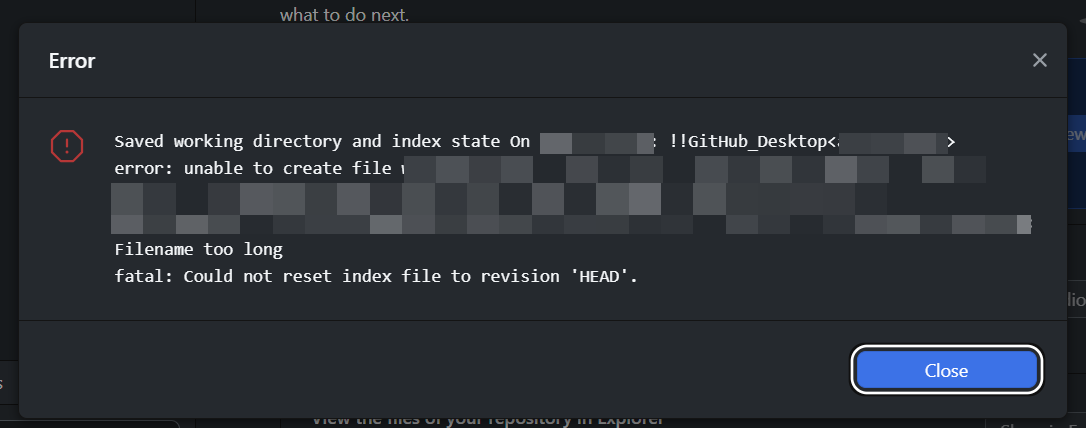
You create a file with a perfectly normal but possibly a tad long path on macOS, commit it to Git (as one does!), and then when you try to pull, sync or reset on Windows, you get this error:
Error

Saved working directory and index state On branchname: !!GitHub_Desktop<branchname> error: unable to create file admittedly/long/file/path/that/worked/fine/on/mac/but/doesnt/in/windows.jpg: Filename too long
fatal: Could not reset index file to revision 'HEAD'.
And on Windows, you can't do anything about it! You can't pull, you can't reset, you can't even delete the file from the command line because of the long path.
One little file - it can even be 0 bytes - is enough to completely break your Git workflow on Windows. There's nothing you can do about it.
But a typical Windows enjoyer being an absolute galaxy brain, a solution to this esoteric problem is well within reach!
So, what are we even waiting for? Let's get to it!
Solution
All in all, this was a fun one! The solution - in short - is to not use Git on Windows.
Well, I'm half joking, of course - because the easiest solution is to fix the issue somewhere else.
Oh - and before doing anything too drastic, you could try enabling long path support in Windows, which might help in some cases. I have done this already, and it didn't help me - so take it with a grain of salt. If you want to try it, you can check the steps here: "Destination Path Too Long" when copying files in File Explorer? Easy workaround(s)!
And of course you COULD just shorten the path on macOS. Or ask your smoothbrained mac-using friend to do it because your poow wittle Windows machwine canw't handwe it.
But I'll just assume that for whatever reason you can't or won't do either of those things. You just want to get your stupid Git working on Windows again without having to see the dreaded Apple logo, or worse, ask an Apple user for help.
So on to the dramatic moves:
How to fix the problem without using Git on Windows
- Open github.com in your web browser and navigate to the repository where you have the problem.
- At this point, you have 2 options:
- You can either ask Copilot to fix the problem for you, or you can do it yourself. If you decide to do the former - it's very simple and will probably just work, because Copilot Coding Agent is NOT using Windows.
- Copilot will take a few seconds to spin up a linux box, shorten the image and shorten paths so that they don't bother your Windows machine:
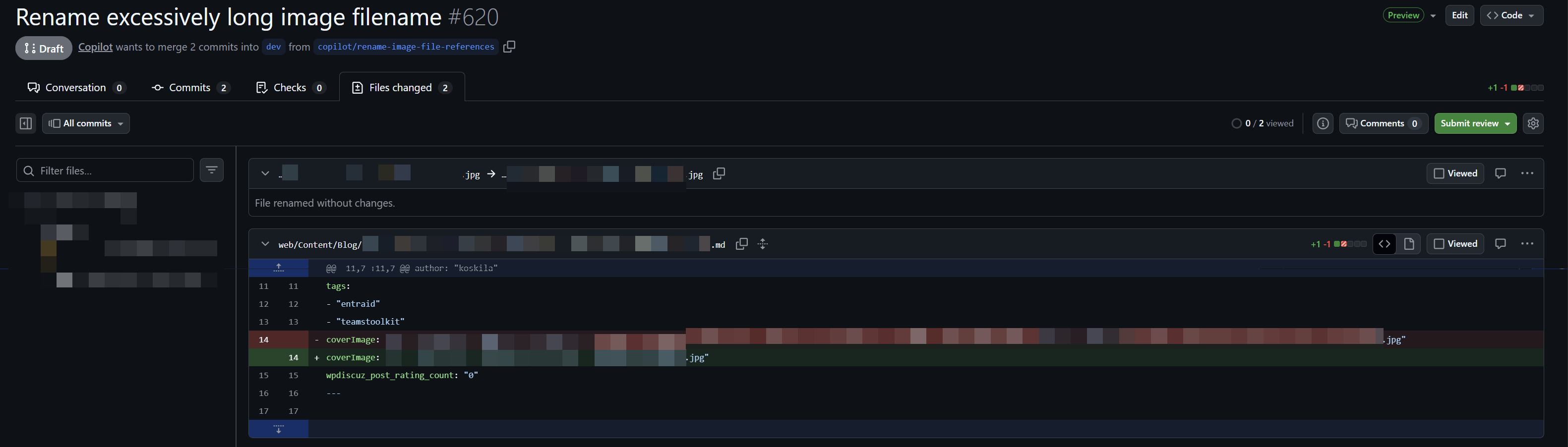
Copilot fixed the issue
- Copilot will take a few seconds to spin up a linux box, shorten the image and shorten paths so that they don't bother your Windows machine:
- If you choose to do the latter, you can follow these steps:
- Click on the file that is causing the problem - you already know the path, it's in the error message!
- Click on the pen icon to "edit" the file.
- Rename the file - I bet you didn't even know you could do that on GitHub, did you? And why would you, unless you're using Windows! 🙈

Yes, you CAN modify a file on github.com directly - Fix any references to this file (easiest to find on a mac, of course, but github search can also be helpful)
- Commit the change directly to whatever branch you want to fix.
- And that's it!
- You can either ask Copilot to fix the problem for you, or you can do it yourself. If you decide to do the former - it's very simple and will probably just work, because Copilot Coding Agent is NOT using Windows.
Now you can go back to your Windows machine, pull the changes, and voila - your Git is working again!
Some last words
A picture says more than a thousand words, so here you go:

Comments
No comments yet.