Sharing your meeting recordings has never been more... Confusing!
This is not my typical blog post, where I introduce a problem, talk a little bit about the background, dive in to the technical stuff, rant for a while and then explain how to get around the issue (or even fix it!)
No - this time, in the spirit of ranting, I'm just venting.
Well, and in the process I do share what actually does work - so I guess it IS a normal blog post after all.
But it IS rantier than usual. You have been warned!
Problem
Have you ever tried to share a meeting recording from Microsoft Teams?
I have. In fact, I do it all the time.
And even then, every time, I find my flabbers gasted by how convoluted and confusing the whole process is.
So please - join me in this little journey of discovery, as we explore the process of sharing a meeting recording in Microsoft Teams.
Step 1: Locate the meeting recording
This is easy enough - you can find the recording in the meeting chat.
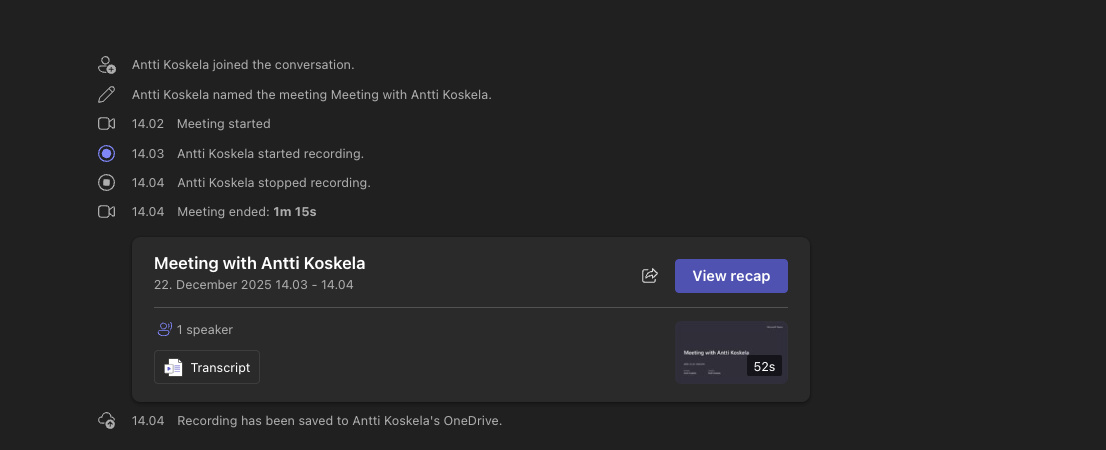
You might even think that clicking the little "Share" icon, and the "Copy link" option under it would, you know, help you share a link to the meeting recording by copying it... Right?
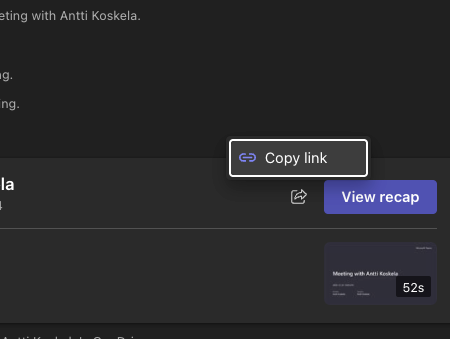
Wrong.
It DOES share a link. And the link DOES point to the recap... But it does NOT share the recording itself. Or the notes. Or anything else.
Only someone who can already access the chat - where you copied the link from - can actually access the link. And there's no way for you to change that.
Here's what the experience looks like, when you share it with a colleague who was NOT in the meeting (even if they were invited).
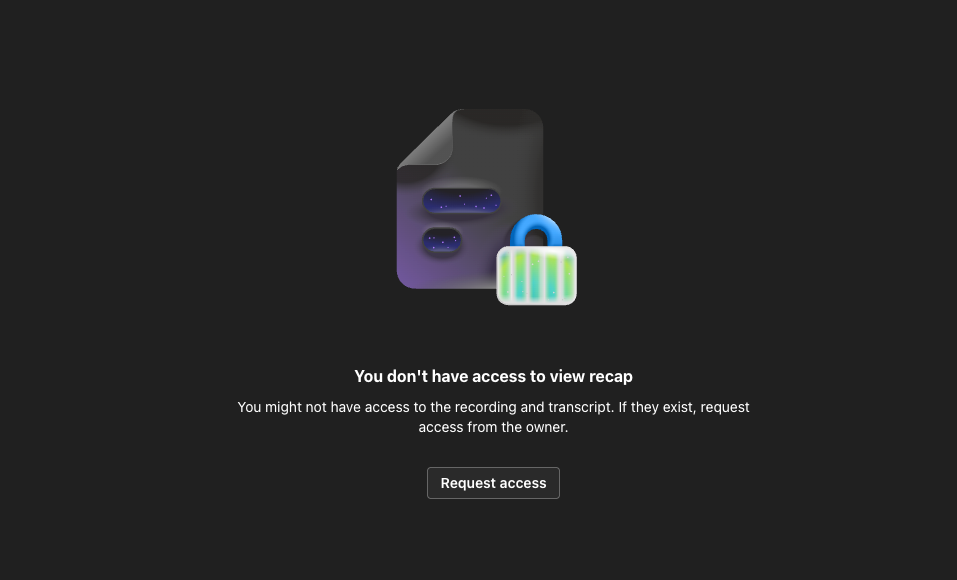
Of course, you can click "Request access". And what happens?
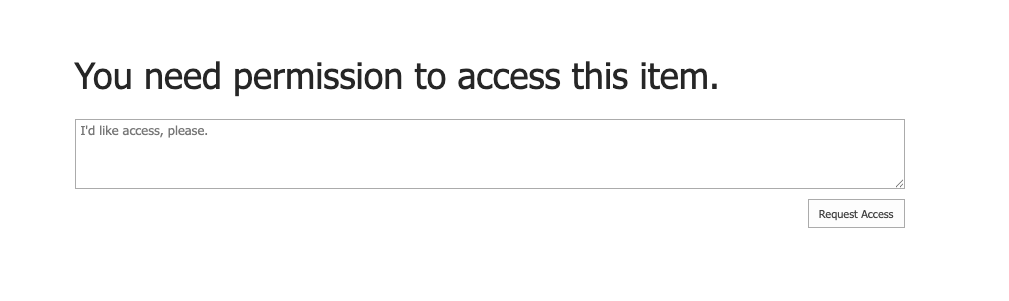
Yep - that's good old SharePoint!
Now, you CAN indeed request access. The bad news is that the only place where the meeting organizer will get the memo, is in Outlook - under "random stuff that you don't need to care about". Also known as the "Other" tab. Under which it could even be grouped with other emails from the dreaded spammer - "SharePoint Online".

No way could this ever go unnoticed, right? Riiiiii-iiight?
Step 2: Weep, open the recap and share it directly
Okay, let's take a step back. You can always go back and simply share from the Meeting Recap directly, right? It even has this pretty sharing dropdown:
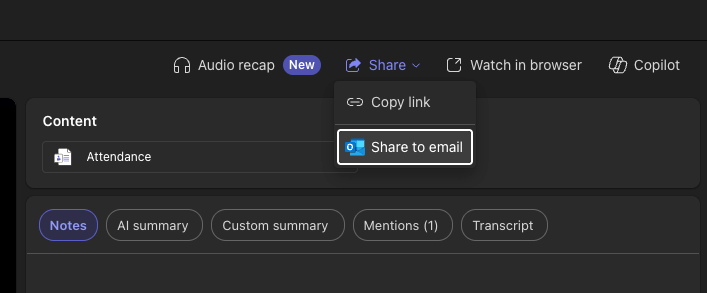
... except neither one of these alternatives actually shares anything.
"Copy link" is just a copy to the meeting recap without sharing anything.
"Share to email" will offer to send the AI-generated (and other) notes to everyone in the meeting - which would be super helpful, if they didn't see the recording link in the first place. But it does not share the recording with anyone.
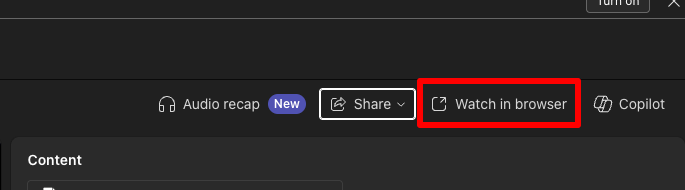
No. To share the recording, you need to click the one thing in the UI that does not say "Share" at all:
Solution
Yes. To "Share" a meeting recording, you need to ignore "Share" buttons and dropdowns entirely, and instead click "Watch in browser".
Even if you're already in the browser - Teams web client - you need to "watch in browser" to actually get to the place where you can share the recording.
When you click "Watch in browser", you are taken to Office 365 Video Portal I mean Microsoft Stream I mean SharePoint site I mean Clipchamp, where you can then share the recording using a modified version of the old reliable - SharePoint sharing dialog.
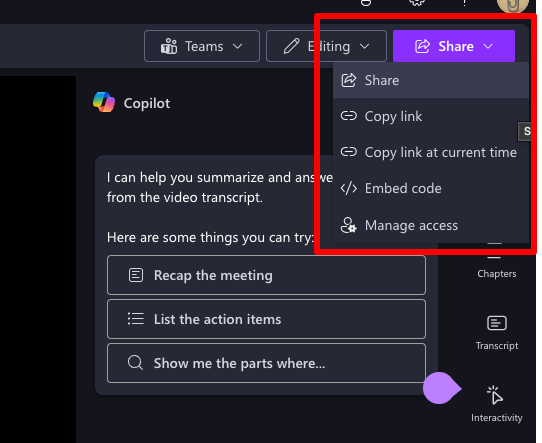
Out of these options:
- "Share"
- Will bring up the same sharing dialog as before, allowing you to share with specific people or groups OR copy a link that works for a configurable audience - this is fantastic (but admittedly old-fashioned)
- "Copy link"
- Will skip the dialog and just copy a link - but also expose a dialog where you can configure who the link works for - again, maybe a bit redundant, but still fully workable
- "Copy link at current time"
- Same as above, but adds a timestamp to the link - again, fully workable
- "Embed code"
- DOESN'T fix the permissions (!!!), but you do get an iframe.. This is fine, since you do have the actual sharing controls available through the same dropdown.
- "Manage access"
- This gives you a shortcut to see all existing sharing permissions and, importantly, LINKS to this video. This is useful - although if you want to actually "Manage access", you'll need to click "Share" in this dialog, which will then, you guessed it, do exactly the same as "Share" (the first option) in the dropdown.
- You can also click "Advanced settings", which will - drumdroll please - take you to the unique permissions page for this video file in SharePoint. From there, you can do all the old-school SharePoint permission management you could ever want (which should be EXACTLY ZERO).

More ranting
I'm sure this design makes perfect sense, if it's implemented by 4 different teams who do not talk to each other.
Not "design by committee", but "4 designs by 4 committees who do not know about each other".
The fifth committee exists to kind of make everything work together. And to cut Microsoft SOME slack, sometimes it's impressive how they still make complex and completely disconnected systems with a lot of dead weight mostly work together.
But this is still an infuriating experience to an end-user, who just needs to share a meeting recording.
Good luck sharing a Microsoft Teams meeting recording with someone who wasn't on the call, if you don't know SharePoint.
And THAT is a sentence that should never have been uttered.
Comments
No comments yet.